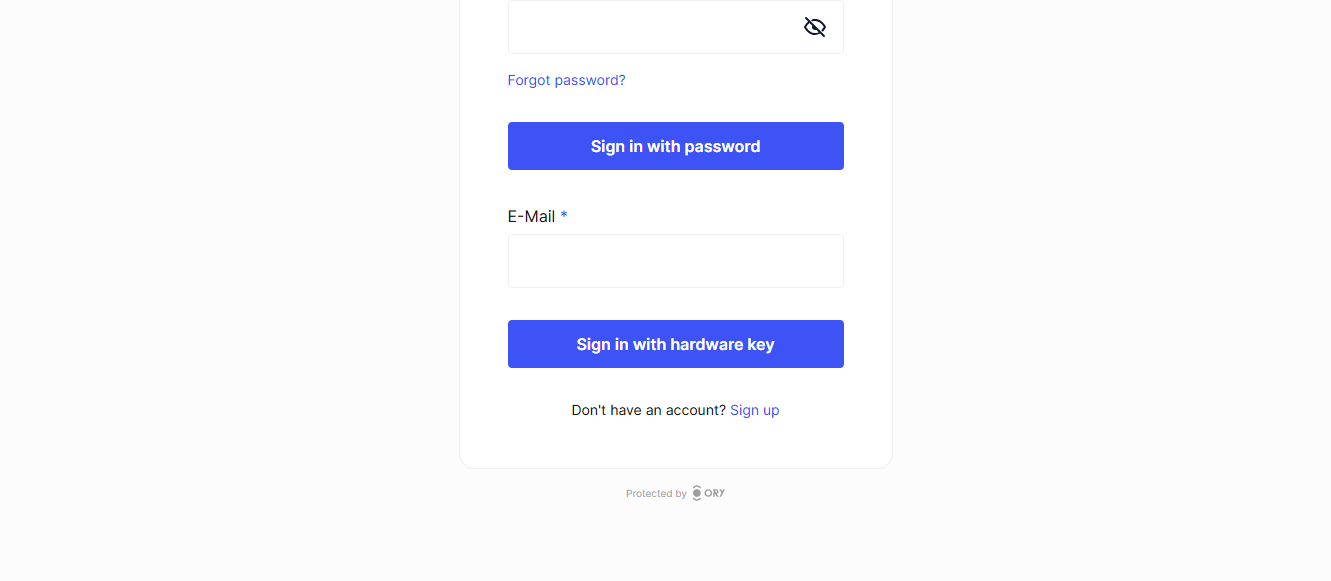
Passwordless login
Passwordless login allows users to authenticate without using traditional passwords. This guide shows how to enable and configure passwordless authentication methods in your Ory project.
Enabling passkeys
Passkeys are a secure and convenient way to authenticate users without passwords. They use public key cryptography and are supported by most modern browsers.
- Ory Console
- Ory CLI
To enable Passkeys:
- Log in to your Ory Console
- Select your workspace and project
- Navigate to the Authentication tab
- Click on Passwordless login in the sidebar
- Toggle "Enable Passkey authentication" to on
- Configure the Display Name (what users see when prompted to authenticate)
- Click "Save"

To enable the passkey strategy using the Ory CLI, run the following command:
ory patch identity-config <your-project-id> \
--add '/selfservice/methods/passkey/enabled=true' \
--add '/selfservice/methods/passkey/config/rp/display_name="My Display Name"'
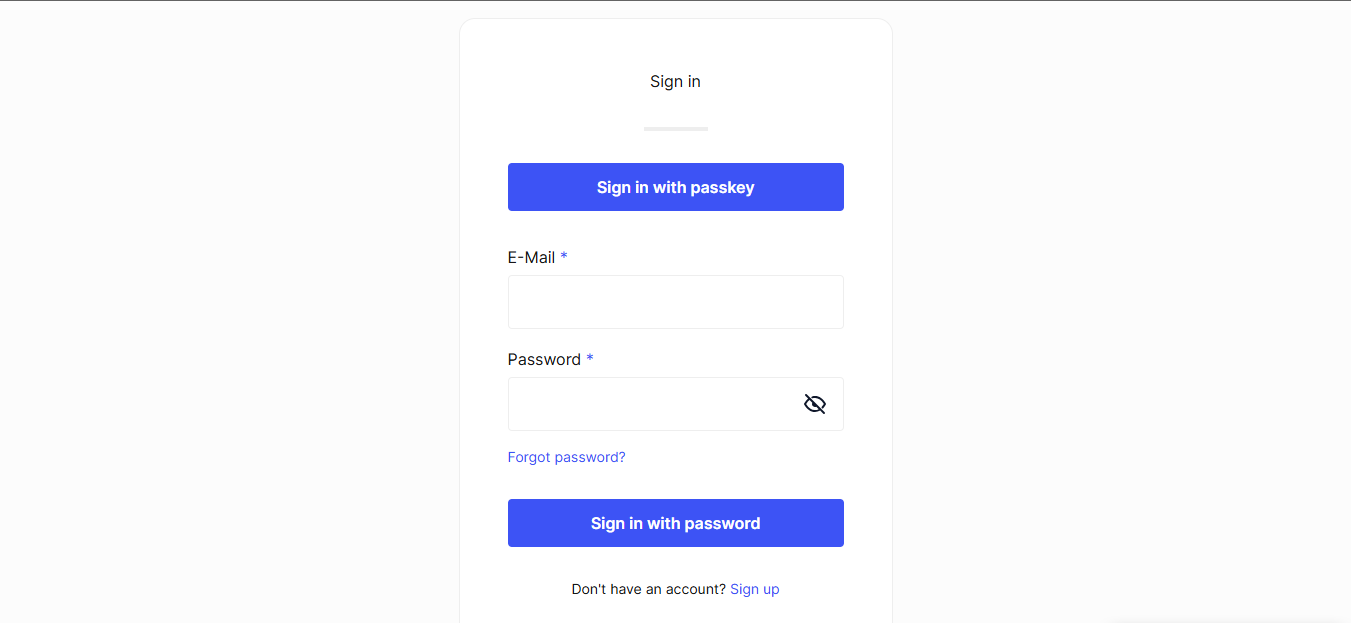
What users will see
Users will see a browser prompt to use a passkey:
Enabling one-time codes
One-time codes (OTC) provide a secure authentication method where codes are sent directly to the user's email.
To enable one-time codes:
- In the Passwordless login section
- Toggle "Enable one-time code passwordless" to on
- Click "Save"

Users will receive a one-time code via email when they attempt to sign in.
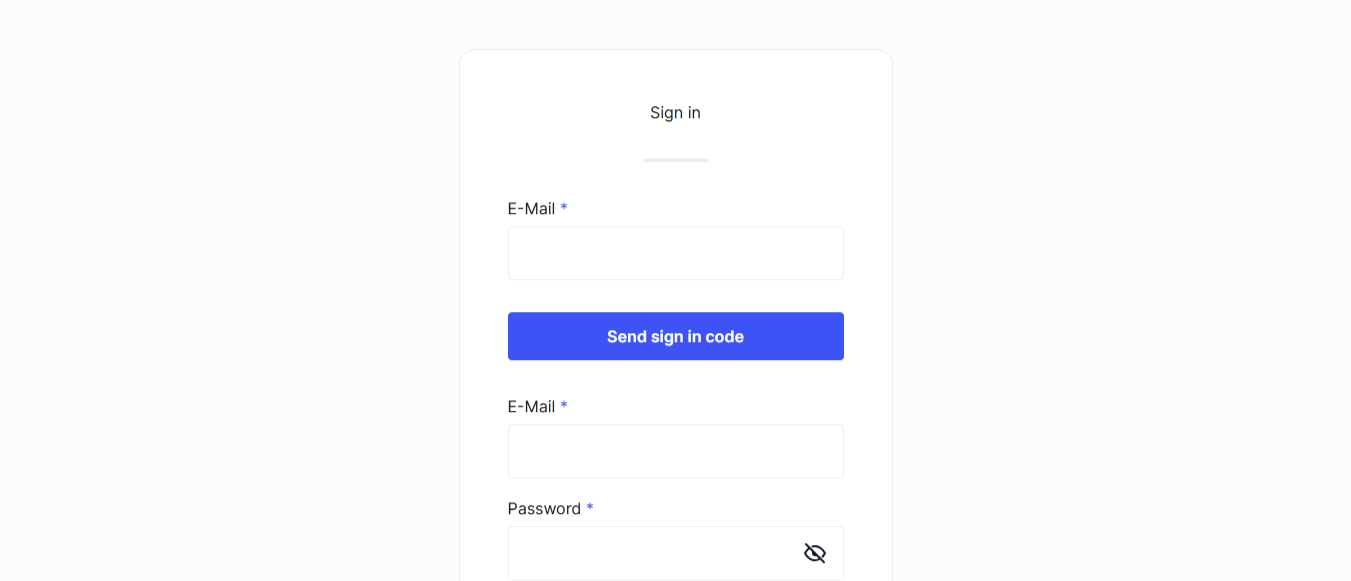
What users will see
When using one-time codes, users will:
- Enter their email address
- Receive a code via email
- Enter the code to complete authentication
Enabling WebAuthn
Prefer passkeys over WebAuthn when possible. This is documented for legacy reasons.
WebAuthn is a standard for hardware-based authentication using security keys or built-in platform authenticators.
- Ory Console
- Ory CLI
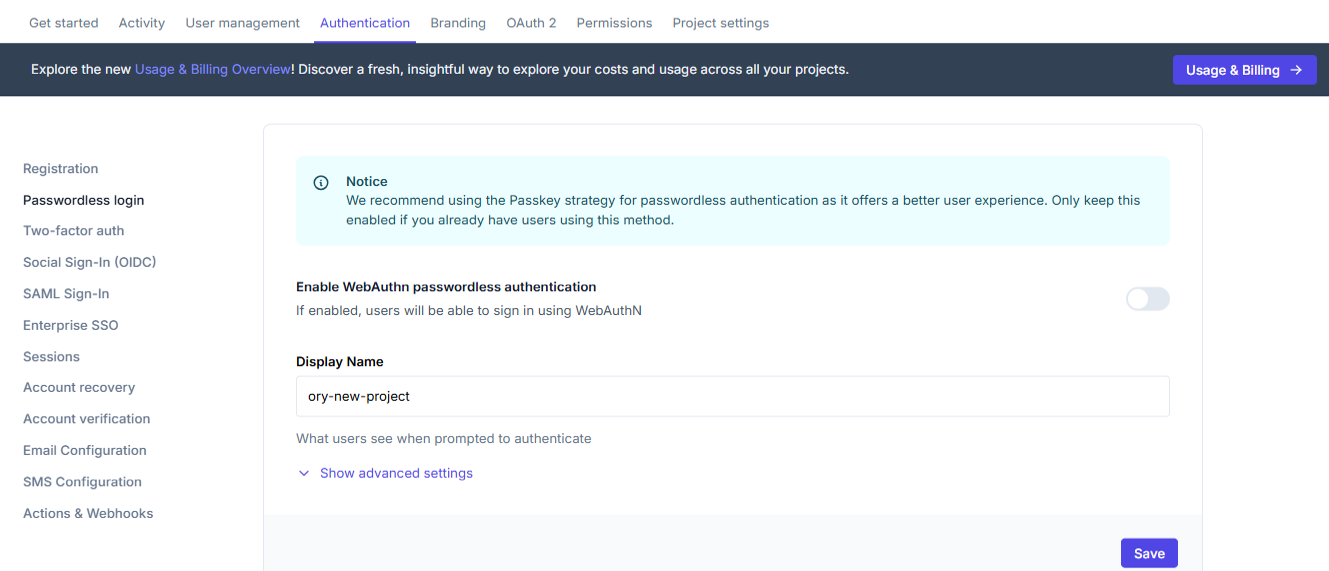
To enable WebAuthn:
- In the Passwordless login section
- Toggle "Enable WebAuthn passwordless authentication" to on
- Configure the Display Name
- Click "Save"
To enable WebAuthn using the Ory CLI, run the following command:
ory patch identity-config <your-project-id> \
--add '/selfservice/methods/webauthn/enabled=true' \
--add '/selfservice/methods/webauthn/config/passwordless=false' \
--add '/selfservice/methods/webauthn/config/rp/display_name="My Display Name"'
What users will see
With WebAuthn enabled, users will be prompted to:
- Insert a security key, or
- Use their device's built-in authenticator (fingerprint, face recognition)